1.Plug in the modem
2. in dmesg you will see a storage device added
3. do lsusb
4. Do modprobe usbserial vendor=xx product=xx (enter the numbers you found in lsusb, for mine it was 0x12d1 with 0x1300)
5. in dmesg you will see 2 serial ports were added (if not, or you only see one.. it might you you dont have usb 2 or your pc is to slow)
6. Put the wvdial.conf script below and make sure you have downloaded the wvdial.dsl file.
7. Start with wvdial hsdpa and you are online.
This information is for a telfort subscription! It took me a while to get the right wvdial.conf, but this should do it.
# wvdial for Vodacom Data. Created by Tazz_tux
# Version 1.0
# Change Log:
#
# Added support for HSDPA.
# Added Headers and version control.
[Dialer Defaults]
Phone = *99***1#
Username = internet
Password = internet
Stupid Mode = 1
Dial Command = ATDT
[Dialer hsdpa]
Modem = /dev/ttyUSB0
Baud = 460800
Init2 = ATZ
Init3 = ATQ0 V1 E1 S0=0 &C1 &D2 +FCLASS=0
Init5 = AT +CGDCONT=1,"IP","internet"
ISDN = 0
Modem Type = Analog Modem
Monday, February 14, 2011
USB MODEM in Damn Small linux

Sunday, February 6, 2011
Instalasi OpenVPN Client in Linux
Install aplikasi GUI utuk client Copy setting OpenVPN Pada Ubuntu Hardy 8.04 tampaknya ada beberapa versi konfigurasi, kita dapat menggunakan salah satu dengan cara Selanjutnya lakukan langkah berikut, yang sama dengan versi lainnya Lakukan langkah berikut Atau copy file /etc/openvpn/vars dari Server. Copy key client dari Server isinya kurang lebih Cara menjalankan VPN client dengan client.conf (from www.openvpn.org)# apt-get install kvpnc
# apt-get install network-manager-openvpn openvpn
# cp -Rf /usr/share/doc/openvpn/examples/easy-rsa/* /etc/openvpn/
# cp -Rf /etc/openvpn/2.0/* /etc/openvpn/
# cd /etc/openvpn
# mkdir /etc/openvpn/keys
# vi vars
# , ./vars
# ./clean-all
# scp -r root@192.168.0.3:/etc/openvpn/keys/ca.crt /etc/openvpn/keys
# scp -r root@192.168.0.3:/etc/openvpn/keys/user1.crt /etc/openvpn/keys
# scp -r root@192.168.0.3:/etc/openvpn/keys/user1.key /etc/openvpn/keys
Menjalankan VPN Client (client.conf from www.openvpn.org)# openvpn --config /etc/openvpn/client.conf
Contoh Client.conf adalah sebagai berikut,# vi /etc/openvpn/client.conf
# Specify that we are a client and that we
# will be pulling certain config file directives
# from the server.
client
# Use the same setting as you are using on
# the server.
# On most systems, the VPN will not function
# unless you partially or fully disable
# the firewall for the TUN/TAP interface.
; dev tap
dev tun
# Windows needs the TAP-Win32 adapter name
# from the Network Connections panel
# if you have more than one.  On XP SP2,
# you may need to disable the firewall
# for the TAP adapter.
; dev-node MyTap
# Are we connecting to a TCP or
# UDP server?  Use the same setting as
# on the server.
;proto tcp
proto udp
# The hostname/IP and port of the server.
# You can have multiple remote entries
# to load balance between the servers.
;remote my-server-1 1194
;remote my-server-2 1194
remote 192.168.0.3 1194
# Choose a random host from the remote
# list for load-balancing.  Otherwise
# try hosts in the order specified.
;remote-random
# Keep trying indefinitely to resolve the
# host name of the OpenVPN server.  Very useful
# on machines which are not permanently connected
# to the internet such as laptops.
resolv-retry infinite
# Most clients don't need to bind to
# a specific local port number.
nobind
# Try to preserve some state across restarts.
persist-key
persist-tun
# If you are connecting through an
# HTTP proxy to reach the actual OpenVPN
# server, put the proxy server/IP and
# port number here.  See the man page
# if your proxy server requires
# authentication.
;http-proxy-retry # retry on connection failures
;http-proxy [proxy server] [proxy port #]
# Wireless networks often produce a lot
# of duplicate packets.  Set this flag
# to silence duplicate packet warnings.
;mute-replay-warnings
# SSL/TLS parms.
# See the server config file for more
# description.  It's best to use
# a separate .crt/.key file pair
# for each client.  A single ca
# file can be used for all clients.
ca keys/ca.crt
cert keys/client.crt
key keys/client.key
# Verify server certificate by checking
# that the certicate has the nsCertType
# field set to "server".  This is an
# important precaution to protect against
# a potential attack discussed here:
#  http://openvpn.net/howto.html#mitm
#
# To use this feature, you will need to generate
# your server certificates with the nsCertType
# field set to "server".  The build-key-server
# script in the easy-rsa folder will do this.
;ns-cert-type server
# If a tls-auth key is used on the server
# then every client must also have the key.
;tls-auth ta.key 1
# Select a cryptographic cipher.
# If the cipher option is used on the server
# then you must also specify it here.
;cipher x
;cipher AES-128-CBC
# Enable compression on the VPN link.
# Don't enable this unless it is also
# enabled in the server config file.
; comp-lzo
# Set log file verbosity.
verb 3
# Silence repeating messages
;mute 20
# openvpn --config /etc/openvpn/client.conf
Using network manager (nm-applet) in KDE4
First of you need to install networkmanager, read more on that here. Once it's installed you need to set it up to run as a daemon, i.e. add it to /etc/rc.conf, and remove network: Furthermore you have to exclude the interfaces you intend to use with networkmanager (also in /etc/rc.conf e.g.: When that's done you need to install gnome-network-manager Then add yourself to the network group: And that should do it, you can now run nm-applet as a normal user, and switch between wireless and wired network without modifying rc.conf every time.As of now knetworkmanager is not available for KDE4, and those of us using NetworkManager are going to have to settle with gnome's version of the network manager applet: nm-applet
DAEMONS=(syslog-ng networkmanager netfs crond alsa hal fam kdm)
INTERFACES=(!eth0 !wlan0)
# pacman -S gnome-network-manager
# usermod -g network your_username
Saturday, February 5, 2011
How to fix MBR in Vista And Windows XP
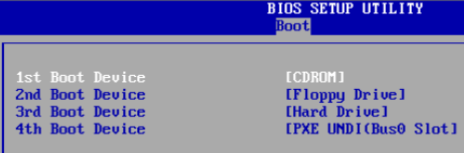
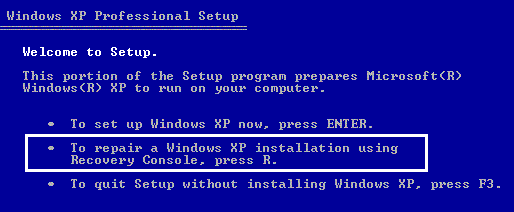
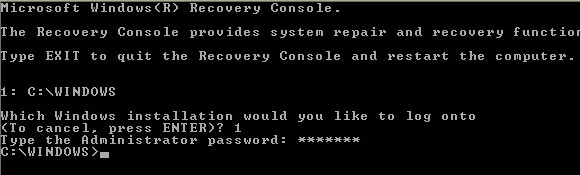
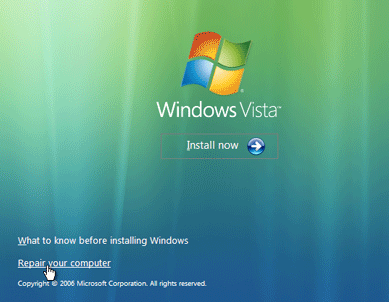
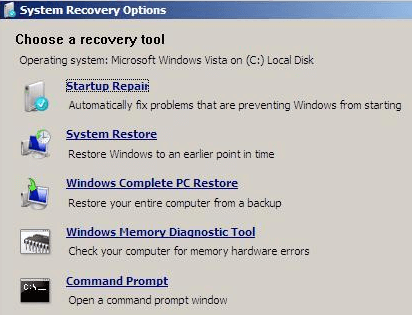
What is the MBR? MBR stands for Master Boot Record and it’s the first sector of your hard drive that basically tells the BIOS where to look for the operating system on your computer. If, for any reason, the MBR becomes damaged or corrupt, then the operating system will be unable to load. You will normally see error messages like: Error loading operating system Missing operating system Invalid partition table These messages are definitely not fun, especially if you are not familiar with computers. Most people would automatically assume their computers are dead! However, that’s not true. Being in IT myself, these errors are actually preferably to other types of Windows errors. Why? Well, it’s actually fairly easy to fix the Master Boot Record in XP and Vista. All you have to do is load up the Recovery Console and run a simple command. All of your data, applications, settings, etc are still intact on the drive and once the MBR is fixed, the computer will load normally. So how can you repair your damaged MBR? Here are the steps to follow: 1. First, restart your computer with the Windows XP setup disk in the CD drive. If you don’t have your original disk, borrow one or download a ISO image from a torrent site. 2. When prompted, boot from the CD drive by pressing any key. If Windows loads automatically, you will first have to enter the BIOS setup and change the order of the boot devices to start with the CD drive. 3. Once the setup loads, you will see the option to press R to repair a Windows installation. 4. Once the Recovery Console loads up, you will have to type in a number that corresponds to your Windows installation. This is normally just 1. Press Enter and then type in the Administrator password. 5. Now at the prompt, type in fixmbr. Your damaged MBR will now be replaced with a new master boot record and your computer should now be able to boot properly. Note that you may also want to run the fixboot command to repair the boot sector with a new one. Also, make sure you only use these commands on a system with one operating system installed. If you have more than one operating system installed, fixmbr and fixboot could mess up everything. In Vista, the procedure to fix the master boot record is a bit different. You have to start up Vista in the Recovery Environment and then run the bootrec command. Here’s how. 1. First, load up the Windows Vista disc in your drive and press any key to boot from the disc. 2. Choose the language, time, currency, etc and click Next. Now click on Repair Your Computer. 3. Choose the operating system to repair and click Next. When the System Recovery Options dialog comes up, choose the Command Prompt. 4. Now type bootrec.exe and press Enter. This will rebuild the boot configuration data and hopefully fix your problem. You can also run the command with switches to fix just the master boot record (/fixmbr), the boot sector (/fixboot), or rebuild the entire BCD (/rebuildbcd). If you are still having trouble with loading Windows, post a comment and I’ll see if I can help! Enjoy!Fix MBR in Vista
How To Repair MBR And Boot Into Linux
With Fedora CDboot: linux rescue# chroot /mnt/sysimage
# _
Restoring GRUB
Execute the following command :# grub-install /dev/hda
Restoring LILO# /sbin/lilo... to install the bootloader on to the MBR.
Using Knoppix CD to repair the boot loader$ su -
# fdisk -l# mount -t ext3 -o rw /dev/hda3 /mnt
#_# chroot /mnt
#_
Update (August 01 2007) : Many have said when they run the grub-install command after following the above steps, they get an error saying that /dev/hda is missing. The most probable reason is that when you chroot to the mount location, it does not have a copy of the device nodes on your machine. Here is a solution for that. If you have installed Linux with /boot, /usr and / in different partitions then the above method may not get the desired results and running the grub-install /dev/hda command after running chroot might give the error that there is no /dev/hda. This is because you have mounted only one of the partitions which houses '/' . And the error tells you that it cannot find the device nodes. In this scenario you can do the following :
Lets say I have Linux installed with / in /dev/hda2, /boot in /dev/hda1 with an ext3 filesystem. I boot using a Live CD as described above and then mount the partitions as follows :# mount -t ext3 /dev/hda2 /mnt
Remember that you are mounting the boot partition into the boot directory inside /mnt. Now mount the proc filesystem of your liveCD as follows (This is really an optional step):
# mount -t ext3 /dev/hda1 /mnt/boot# mount -t proc none /mnt/procFinally bind the device nodes build by your liveCD to the /mnt/dev location as follows :# mount -o bind /dev /mnt/devNow you can chroot to the /mnt location and run the grub-install command as described above.# chroot /mnt
Please note: This updated method is applicable only if you have a Linux installation spread across multiple partitions. If you have installed Linux in a single partition, the first and second step works flawlessly. At least it works for me.
# grub-install /dev/hda
Thursday, February 3, 2011
Reverse Proxy with ModProxy
I have added a new two months poll on this blog. It's about a normal questions about what actions will you do when the next Slackware release is available. I don't know when will that time be, but based on past experience, it should be coming soon enough, which makes me confident that it will be released before this poll ended in April.
So, see the Changelog if you are curious about what will be included in the next Slackware and if you can't wait for the final release, you can also upgrade to -Current or download the latest ISO which contains Slackware-Current updates (ask Google for it, as Slackware only provides you with the official release, not a snapshot or even RC release).